A Comprehensive Guide to Computer Basics
A Comprehensive Guide to Computer Basics
In this digital age, computers have become indispensable tools in our daily life and work. Whether you are a beginner just getting started with computers or someone looking to enhance your computer skills, this article will provide you with comprehensive and practical basic knowledge about computers. Let's embark on this journey of computer learning together!
一. Basic Components of a Computer
Understanding the structure of a computer is the first step in using it. A computer is mainly composed of two parts: hardware and software.
1. Hardware: The visible and tangible components
The main unit: The core part of the computer, including CPU (Central Processing Unit), memory (Random Access Memory), hard disk (long-term storage device), etc.
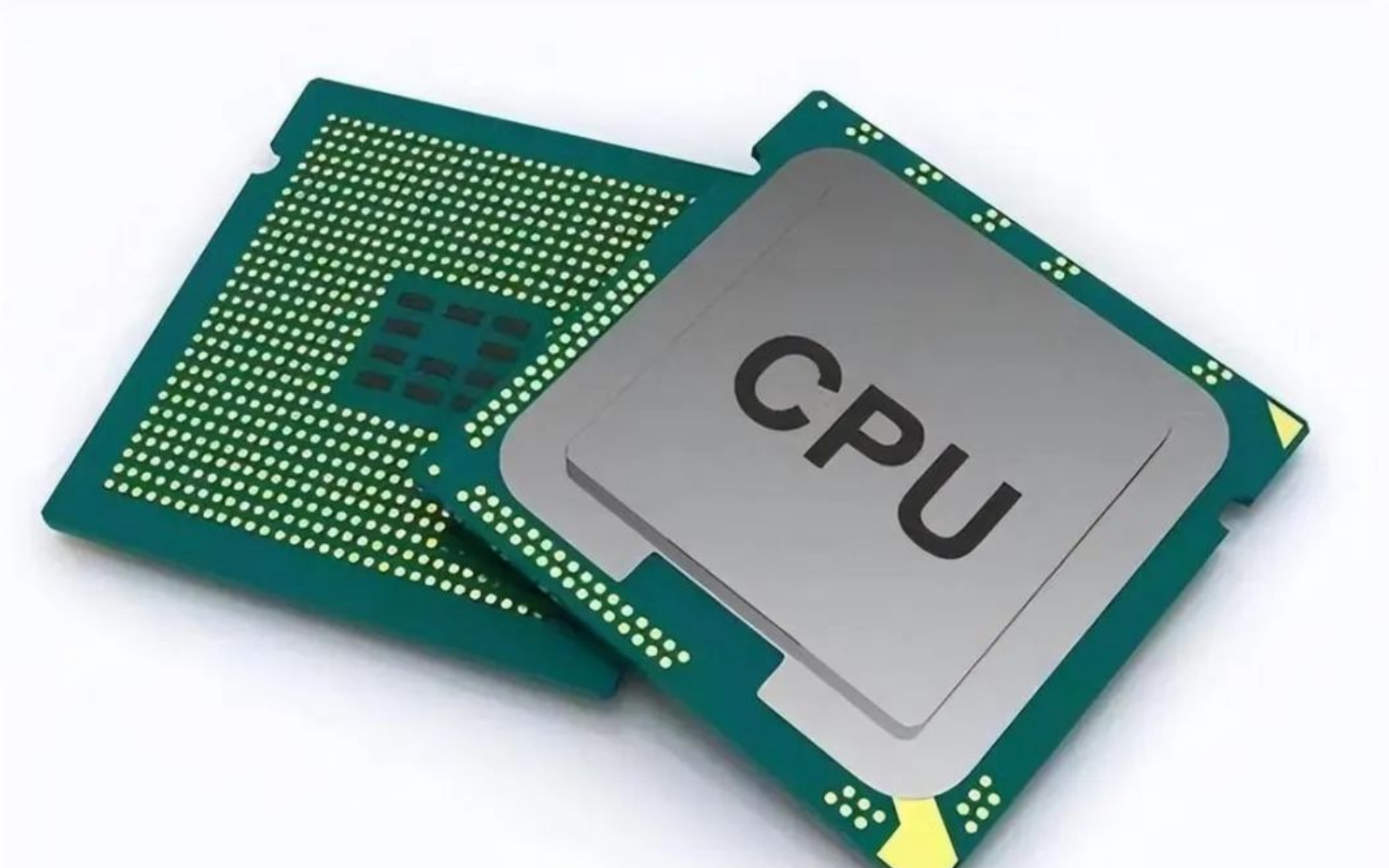
• CPU (Central Processing Unit): The brain of the computer, responsible for executing various instructions and performing calculations, directly affecting the performance of the computer.
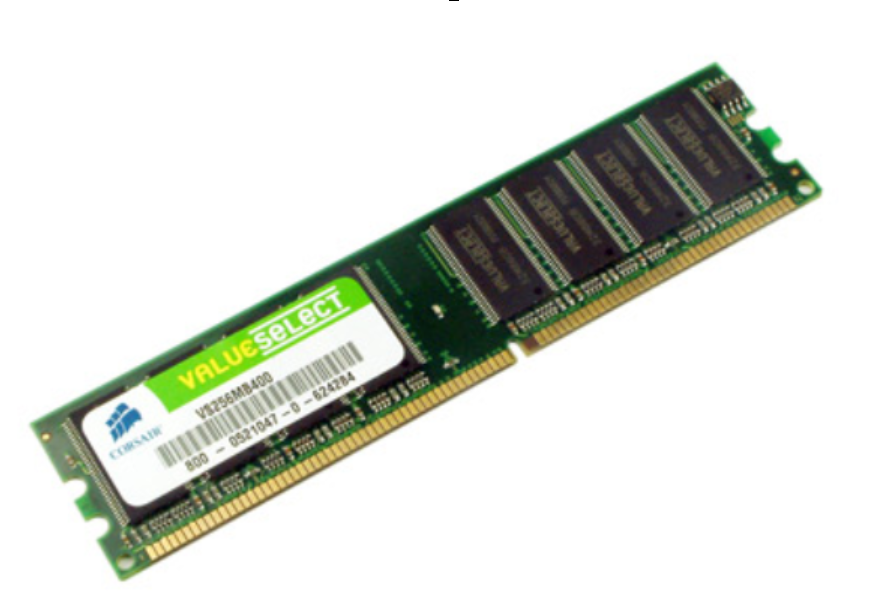
• Memory (RAM, Random Access Memory): A short-term storage device used to temporarily store the programs and data being executed. The larger the memory, the more programs can be run simultaneously.
•Hard Disk (HDD/SSD, Hard Disk Drive/Solid State Drive): A long-term storage device used to store the operating system, software and user files. HDD is a traditional mechanical hard drive with large capacity but slow speed; SSD is a solid-state drive with high speed but higher price.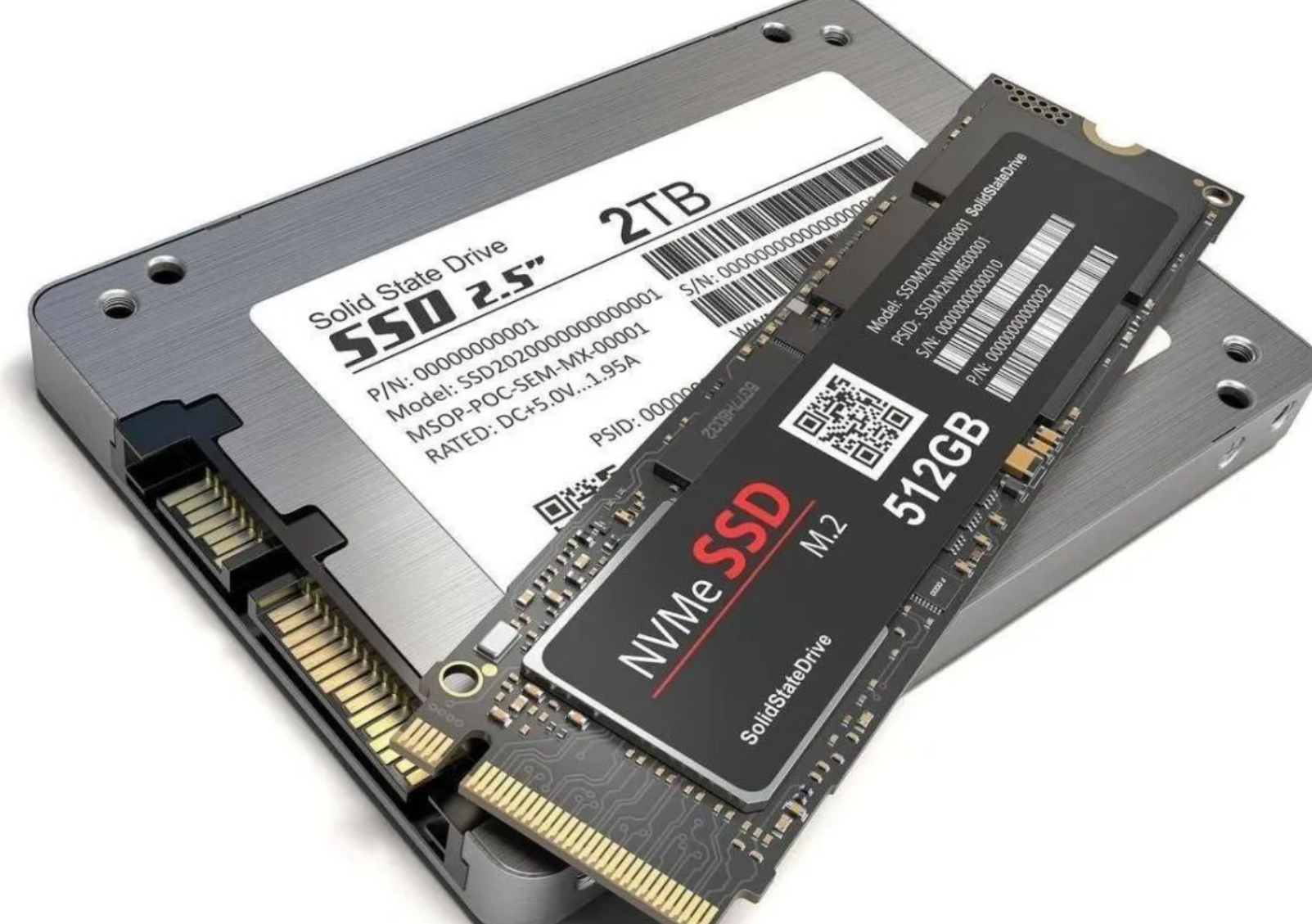
• Motherboard: The "framework" that connects all the hardware components. It integrates and enables the operation of components such as the CPU, memory, and hard drive.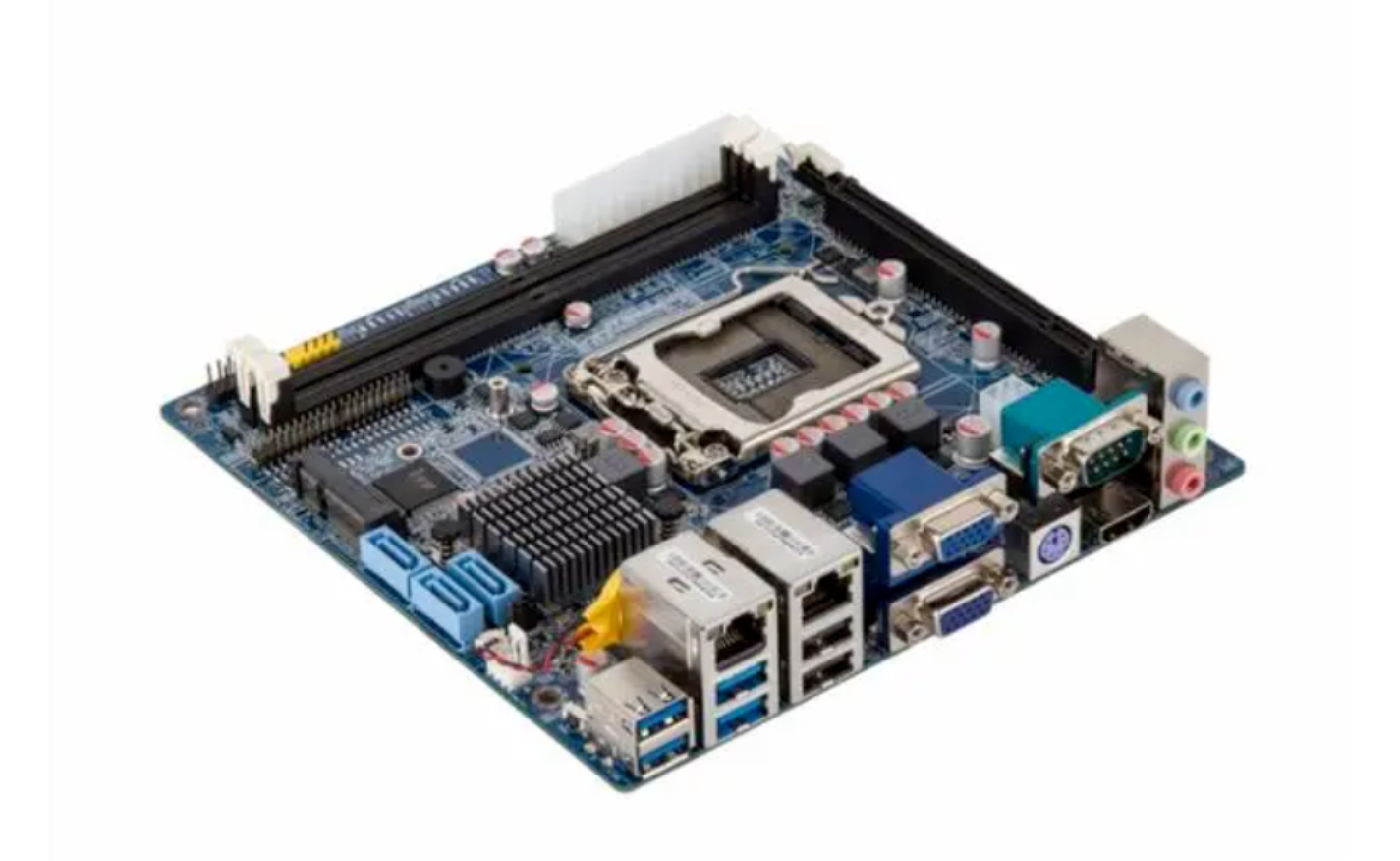
• Graphics Processing Unit (GPU): Responsible for image processing, which is particularly important for gamers and designers. Independent GPUs have stronger performance, while integrated GPUs save space and cost.
• Power Supply Unit (PSU): Supplies power to the entire computer system to ensure the stable operation of all components.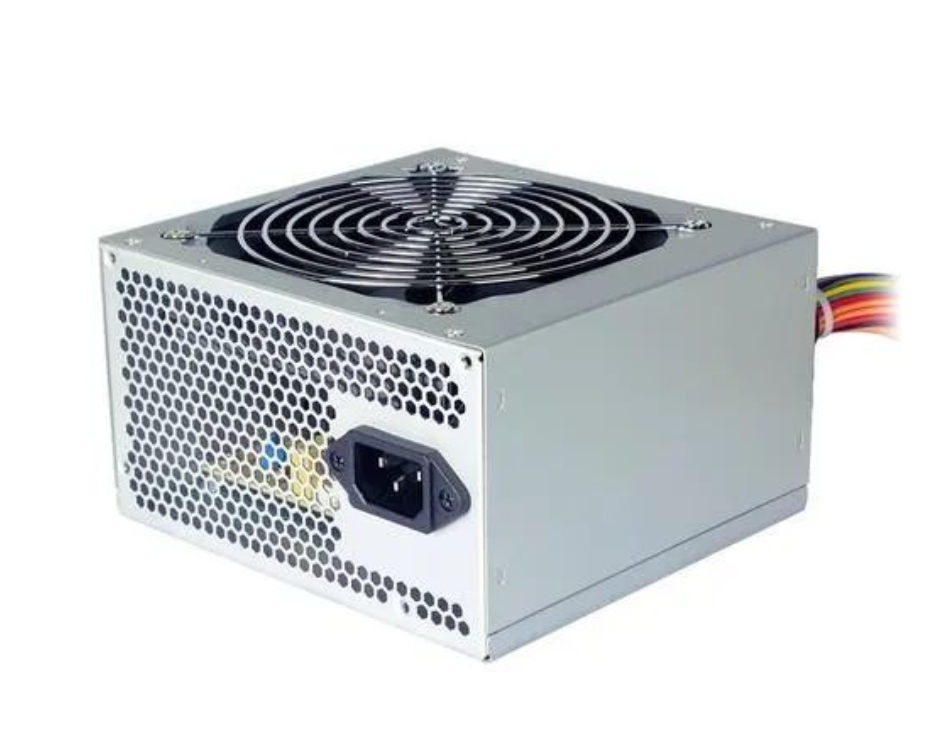
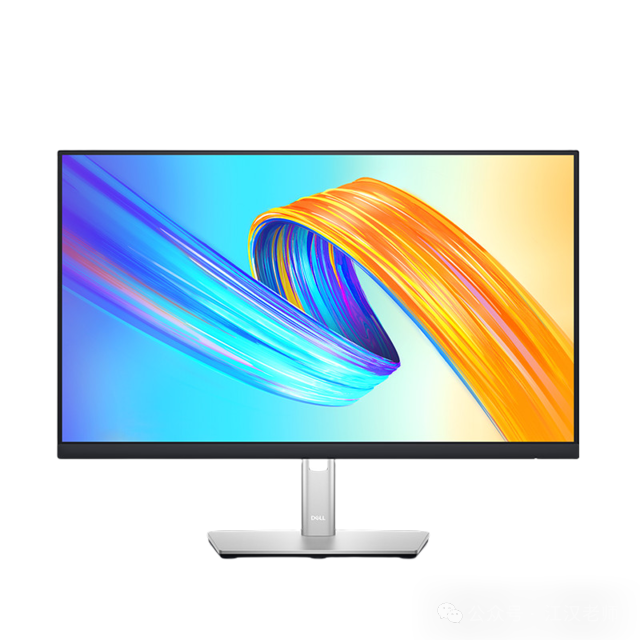
Monitor: Used to display images, common types include LED screens and OLED screens. Resolution, refresh rate, and color performance are all factors to consider when choosing a monitor.
Keyboard and mouse: Input devices used for interacting with computers. Keyboards are divided into mechanical keyboards and membrane keyboards, each with its own advantages and disadvantages; mice come in wired and wireless varieties, and wireless mice are more portable.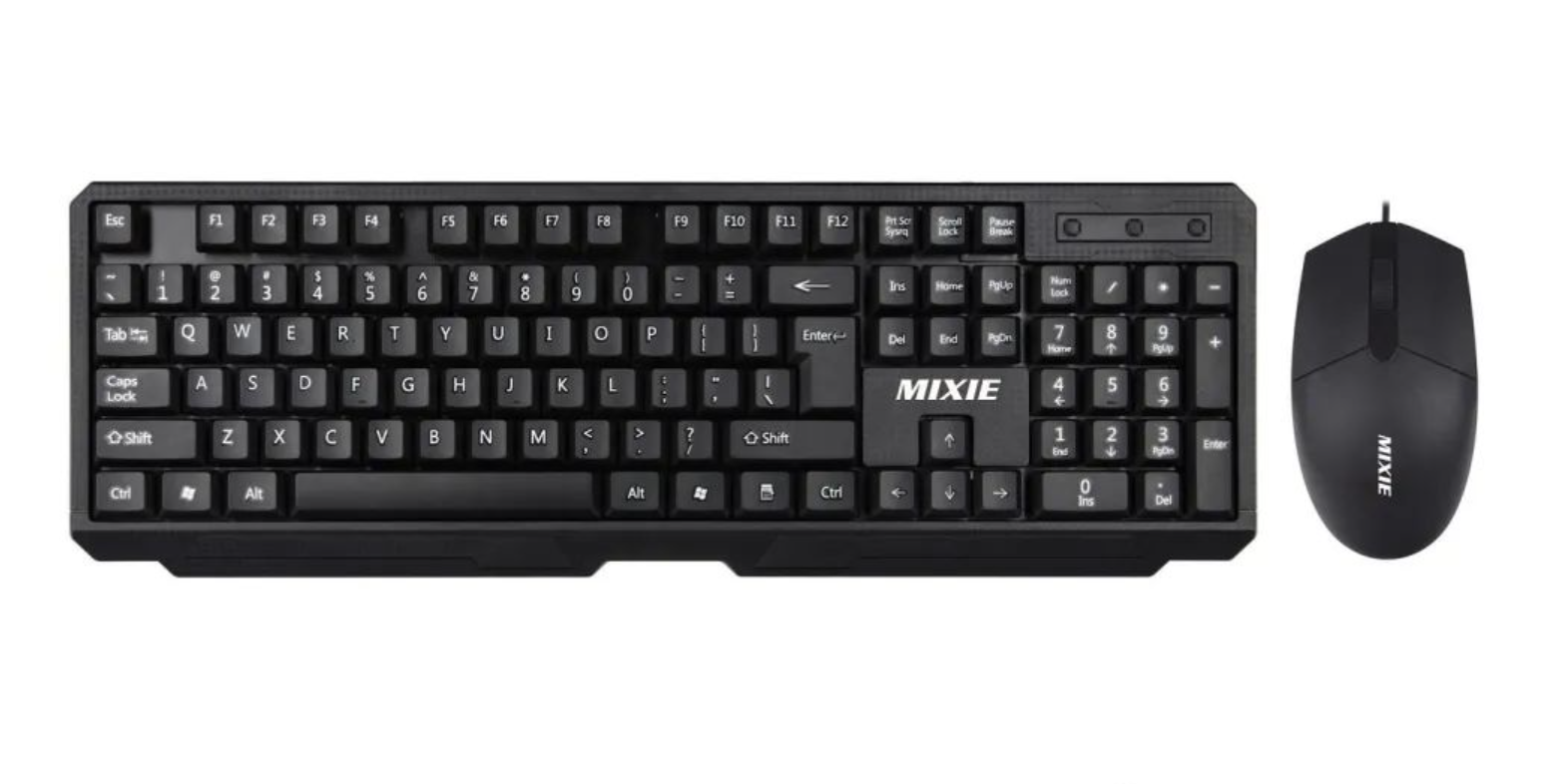
Peripherals: Such as printers, speakers, cameras, etc., which can expand the functions of the computer as needed.
2. Software: The invisible but usable part.
1) System software: Such as Windows, MacOS, Linux, which are the foundation for the computer to operate.
• Windows: An operating system developed by Microsoft, with a friendly interface and strong compatibility, suitable for most users.
• MacOS: An operating system developed by Apple, specifically designed for Mac computers. It is smooth and aesthetically pleasing, but has relatively high hardware requirements.
•Linux: An open-source operating system, suitable for programmers and tech enthusiasts, with strong customization capabilities and high security.
2) Application Software: Such as Word, Excel, Photoshop, etc., which are tools tailored to various needs.
• Microsoft Office: Comprising Word, Excel, PowerPoint, etc., is an excellent aid for office automation.
— Word: A word processing software used for writing documents, reports, etc.
— Excel: An electronic spreadsheet software, proficient in data analysis, chart creation, etc.
— PowerPoint (PPT): A presentation software used for creating presentation slides for speeches.
• Adobe Photoshop: An image editing software widely used in image processing, graphic design, etc.
• Google Chrome/Firefox/Edge Browser: Used for browsing web pages, supporting various plugin extension functions.
• Anti-virus Software: Such as 360 Security Guard, Kaspersky, etc., protecting computers from viruses and malicious software.
二、Essential Computer Operating Skills for Beginners
1. File Management
• Create folders: Place similar files in one folder for easy searching.
• Shortcut keys:
— Ctrl + C: Copy
— Ctrl + V: Paste
— Ctrl + S: Save
— Ctrl + Z: Undo the last operation
• Back up important files: Regularly copy important files to a USB drive or cloud storage to prevent loss.
2. Internet Basics
• Browser selection: Common browsers include Chrome, Edge, Firefox, etc.
• Search techniques:
— Use keyword combinations for searching, such as "How to create PPT animation effects".
— Site suffix filtering: Adding "site:edu.cn" can limit the search to educational websites.
• Cybersecurity: Do not click on unfamiliar links randomly and update antivirus software regularly.
3. Common Office Software
• Word: A good helper for writing documents, learn to insert tables, pictures, and page breaks.
• Excel: A powerful tool for handling data, master basic formulas such as SUM and AVERAGE.
• PPT: For creating presentation slides, pay attention to color selection and layout, and keep it simple and clear to be more attractive.
三. Basic Knowledge of Computer Maintenance
1. Clean dust
—If not cleaned for a long time, dust will block the cooling vents, causing the computer to overheat and even get damaged. You can use a hair dryer or a special cleaner to clean it.
2. Optimize system
—Regularly delete unused files and programs to free up disk space.
—Use the built-in optimization tools of the system, such as Windows' Disk Cleanup and Defragmentation functions.
- Protect screen
—Avoid staring directly at the screen under strong light for a long time and adjust the appropriate brightness.
—Use the eye-protection mode to reduce the harm of blue light to the eyes.
- Four. Common Problems and Solutions
1. What should I do if my computer is lagging?
• Check if too many programs are open and close unnecessary tasks.
• Clean up junk files and upgrade hardware (such as adding memory sticks).
2. What if I forget my password?
• For Windows systems, you can try resetting the password or use PE tools to retrieve it.
• Set password hint questions in advance to be prepared for any situation.
3. What if I can't connect to the network?
• Check if the router is working properly.
• Restart the computer and network devices, and try reconnecting to Wi-Fi.
五. Advanced Learning Directions
If you have mastered the basic operations, you can try the following advanced skills: - Programming Basics: Learn languages like Python and HTML to lay a foundation for future career development. - Image Processing: Master tools like Photoshop and Lightroom to become a design expert. - Video Editing: Use software like Pr and Final Cut Pro to create your own blockbuster.
六、Final Words
Computers are not just tools, but also a gateway to unlimited possibilities. Through continuous learning and practice, you will surely grow from a novice to a computer expert! I hope this article can help you better understand computers and make your life and work more efficient.
How to Improve the Startup Speed of Your Computer
Why Won’t My Laptop Turn On?