
Why Won’t My Laptop Turn On?
author: KEXIDAR-R&D
2025-03-06
Why Won’t My Laptop Turn On?
Few things are more frustrating than pressing the power button on your laptop and… nothing happens. Whether you rely on your laptop for work, school, or entertainment, a device that won’t turn on can feel like a major setback. The good news is that many of the reasons why a laptop won’t boot are fixable, even if you’re not a tech expert. In this article, we’ll explore the most common causes of this issue, provide step-by-step solutions, and help you get your laptop up and running again.
---
Common Reasons Why Your Laptop Won’t Turn On
Before diving into solutions, it’s important to understand the potential causes of the problem. Here are the most common reasons why your laptop might not boot:
1. Power Supply Issues
- Dead Battery: If your laptop’s battery is completely drained, it won’t turn on until it gets some charge.
- Faulty Charger or Adapter: A damaged charger or power adapter can prevent your laptop from receiving power.
- Loose or Damaged Power Cable: If the cable connecting the charger to the laptop is loose or frayed, power delivery may be interrupted.
- Dead Battery: If your laptop’s battery is completely drained, it won’t turn on until it gets some charge.
- Faulty Charger or Adapter: A damaged charger or power adapter can prevent your laptop from receiving power.
- Loose or Damaged Power Cable: If the cable connecting the charger to the laptop is loose or frayed, power delivery may be interrupted.
2. Hardware Failures
- Faulty Power Button: The power button itself might be damaged or unresponsive.
- Failed Motherboard: The motherboard is the heart of your laptop, and if it fails, the laptop won’t start.
- Damaged RAM or Storage: Issues with the RAM or hard drive/SSD can prevent the laptop from booting.
- Overheating: If your laptop overheats, it may shut down to protect itself and refuse to turn back on until it cools down.
- Faulty Power Button: The power button itself might be damaged or unresponsive.
- Failed Motherboard: The motherboard is the heart of your laptop, and if it fails, the laptop won’t start.
- Damaged RAM or Storage: Issues with the RAM or hard drive/SSD can prevent the laptop from booting.
- Overheating: If your laptop overheats, it may shut down to protect itself and refuse to turn back on until it cools down.
3. Software or Firmware Problems
- Corrupted BIOS/UEFI: If the BIOS or UEFI firmware is corrupted, the laptop may not boot.
- Failed Operating System Update: A botched OS update can render your laptop unbootable.
- Malware or Viruses: Severe malware infections can prevent your laptop from starting up.
- Corrupted BIOS/UEFI: If the BIOS or UEFI firmware is corrupted, the laptop may not boot.
- Failed Operating System Update: A botched OS update can render your laptop unbootable.
- Malware or Viruses: Severe malware infections can prevent your laptop from starting up.
4. Display Issues
- Black Screen: The laptop might be turning on, but the screen remains black due to a display or graphics card problem.
- Backlight Failure: The screen’s backlight might be faulty, making it appear as though the laptop isn’t turning on.
- Black Screen: The laptop might be turning on, but the screen remains black due to a display or graphics card problem.
- Backlight Failure: The screen’s backlight might be faulty, making it appear as though the laptop isn’t turning on.
5. External Factors
- Peripheral Devices: Sometimes, connected devices like USB drives or external hard drives can interfere with the boot process.
- Environmental Damage: Exposure to moisture, dust, or extreme temperatures can damage internal components.
- Peripheral Devices: Sometimes, connected devices like USB drives or external hard drives can interfere with the boot process.
- Environmental Damage: Exposure to moisture, dust, or extreme temperatures can damage internal components.
---
Step-by-Step Solutions to Fix Your Laptop
Now that we’ve identified the potential causes, let’s walk through the steps to diagnose and fix the problem.
Step 1: Check the Power Supply
1. Inspect the Charger and Cable: Look for visible damage to the charger or cable. If possible, test with another charger to rule out a faulty adapter.
2. Plug It In: Ensure the charger is securely connected to both the laptop and the power outlet. Try a different outlet to eliminate the possibility of a faulty socket.
3. Check the Battery: If your laptop has a removable battery, take it out and reinsert it. If the battery is swollen or damaged, replace it.
4. Look for Power Indicators: Most laptops have an LED light that indicates whether they’re receiving power. If the light is on, the issue might not be power-related.
1. Inspect the Charger and Cable: Look for visible damage to the charger or cable. If possible, test with another charger to rule out a faulty adapter.
2. Plug It In: Ensure the charger is securely connected to both the laptop and the power outlet. Try a different outlet to eliminate the possibility of a faulty socket.
3. Check the Battery: If your laptop has a removable battery, take it out and reinsert it. If the battery is swollen or damaged, replace it.
4. Look for Power Indicators: Most laptops have an LED light that indicates whether they’re receiving power. If the light is on, the issue might not be power-related.
Step 2: Perform a Hard Reset
A hard reset can resolve issues caused by residual power or minor hardware glitches.
1. Unplug the Charger: Disconnect the laptop from the power source.
2. Remove the Battery: If your laptop has a removable battery, take it out.
3. Hold the Power Button: Press and hold the power button for 30 seconds to discharge any residual power.
4. Reconnect and Restart: Reinsert the battery (if applicable), plug in the charger, and try turning on the laptop.
A hard reset can resolve issues caused by residual power or minor hardware glitches.
1. Unplug the Charger: Disconnect the laptop from the power source.
2. Remove the Battery: If your laptop has a removable battery, take it out.
3. Hold the Power Button: Press and hold the power button for 30 seconds to discharge any residual power.
4. Reconnect and Restart: Reinsert the battery (if applicable), plug in the charger, and try turning on the laptop.
Step 3: Check the Display
1. Look for Signs of Life: Listen for fan noise, hard drive activity, or keyboard lights. If you hear or see these signs, the issue might be with the display.
2. **Connect an External Monitor: Use an HDMI or VGA cable to connect your laptop to an external monitor. If the external display works, the problem lies with your laptop’s screen or graphics card.
3. Adjust Brightness: Sometimes, the screen brightness might be set too low. Try increasing it using the brightness function keys.
1. Look for Signs of Life: Listen for fan noise, hard drive activity, or keyboard lights. If you hear or see these signs, the issue might be with the display.
2. **Connect an External Monitor: Use an HDMI or VGA cable to connect your laptop to an external monitor. If the external display works, the problem lies with your laptop’s screen or graphics card.
3. Adjust Brightness: Sometimes, the screen brightness might be set too low. Try increasing it using the brightness function keys.
Step 4: Diagnose Hardware Issues
1. Test the RAM: If your laptop has accessible RAM slots, remove the RAM sticks and reinsert them. If you have multiple sticks, test them one at a time to identify a faulty module.
2. Check the Storage Drive: If your laptop has a removable hard drive or SSD, ensure it’s properly connected. You can also try booting from a USB drive to see if the issue is with the internal storage.
3. Inspect for Overheating: If your laptop feels unusually hot, let it cool down before attempting to turn it on again. Clean the vents and fans to improve airflow.
1. Test the RAM: If your laptop has accessible RAM slots, remove the RAM sticks and reinsert them. If you have multiple sticks, test them one at a time to identify a faulty module.
2. Check the Storage Drive: If your laptop has a removable hard drive or SSD, ensure it’s properly connected. You can also try booting from a USB drive to see if the issue is with the internal storage.
3. Inspect for Overheating: If your laptop feels unusually hot, let it cool down before attempting to turn it on again. Clean the vents and fans to improve airflow.
Step 5: Address Software or Firmware Problems
1. Access BIOS/UEFI: Restart your laptop and press the designated key (often F2, F10, or DEL) to enter the BIOS/UEFI settings. If you can access the BIOS, the issue might be software-related.
2. Reset BIOS/UEFI Settings: Look for an option to reset the BIOS/UEFI to default settings. This can resolve issues caused by incorrect configurations.
3. Boot into Safe Mode: If your laptop starts but doesn’t load the operating system, try booting into Safe Mode. This can help you troubleshoot software issues or remove problematic updates.
1. Access BIOS/UEFI: Restart your laptop and press the designated key (often F2, F10, or DEL) to enter the BIOS/UEFI settings. If you can access the BIOS, the issue might be software-related.
2. Reset BIOS/UEFI Settings: Look for an option to reset the BIOS/UEFI to default settings. This can resolve issues caused by incorrect configurations.
3. Boot into Safe Mode: If your laptop starts but doesn’t load the operating system, try booting into Safe Mode. This can help you troubleshoot software issues or remove problematic updates.
Step 6: Seek Professional Help
If none of the above steps work, it’s time to consult a professional. A certified technician can diagnose and repair more complex issues, such as a failed motherboard or deep-seated hardware problems.
If none of the above steps work, it’s time to consult a professional. A certified technician can diagnose and repair more complex issues, such as a failed motherboard or deep-seated hardware problems.
---
Preventive Measures to Avoid Future Issues
To minimize the chances of your laptop failing to turn on in the future, follow these best practices:
1. Keep Your Laptop Clean: Regularly clean the vents, fans, and keyboard to prevent dust buildup.
2. Update Software and Firmware: Install updates for your operating system, drivers, and BIOS/UEFI to ensure optimal performance and security.
3. Use a Surge Protector: Protect your laptop from power surges by using a surge protector or uninterruptible power supply (UPS).
4. Avoid Overheating: Use your laptop on hard, flat surfaces to ensure proper ventilation. Consider using a cooling pad for extended use.
5. Backup Your Data: Regularly back up your important files to an external drive or cloud storage to prevent data loss in case of hardware failure.
1. Keep Your Laptop Clean: Regularly clean the vents, fans, and keyboard to prevent dust buildup.
2. Update Software and Firmware: Install updates for your operating system, drivers, and BIOS/UEFI to ensure optimal performance and security.
3. Use a Surge Protector: Protect your laptop from power surges by using a surge protector or uninterruptible power supply (UPS).
4. Avoid Overheating: Use your laptop on hard, flat surfaces to ensure proper ventilation. Consider using a cooling pad for extended use.
5. Backup Your Data: Regularly back up your important files to an external drive or cloud storage to prevent data loss in case of hardware failure.
---
Conclusion
A laptop that won’t turn on can be a source of stress, but in many cases, the problem is fixable with a bit of troubleshooting. By systematically checking the power supply, hardware, and software, you can often identify and resolve the issue without professional help. However, if the problem persists, don’t hesitate to seek assistance from a qualified technician. With the right approach, you’ll have your laptop back in working order in no time.
Remember, prevention is key. By taking good care of your laptop and addressing issues early, you can extend its lifespan and avoid unexpected downtime. Happy computing!
A Comprehensive Guide to Computer Basics
Related Article
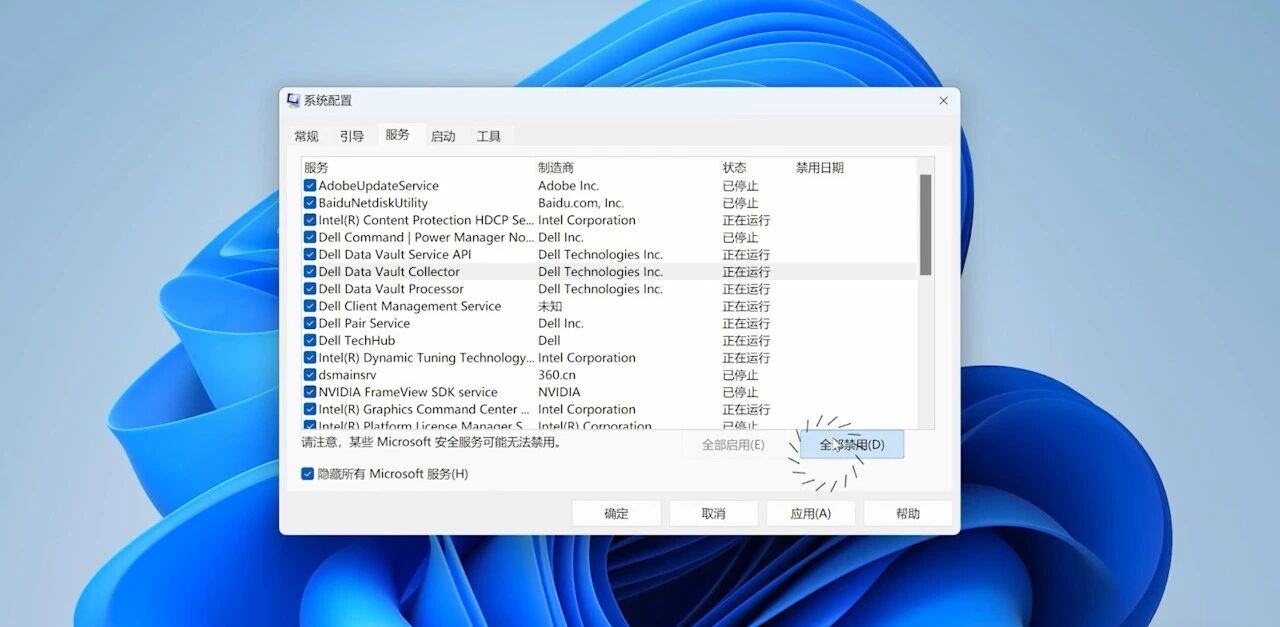
Use the System Configuration application to manually select the applications and services that start up.
How to Improve the Startup Speed of Your Computer
In this digital age, computers have become indispensable tools in our daily life and work. Whether you are a beginner just getting started with computers or someone looking to enhance your computer skills, this article will provide you with comprehensive and practical basic knowledge about computers. Let's embark on this journey of computer learning together!
A Comprehensive Guide to Computer Basics