
How to connect beats to laptop
How to connect beats to laptop
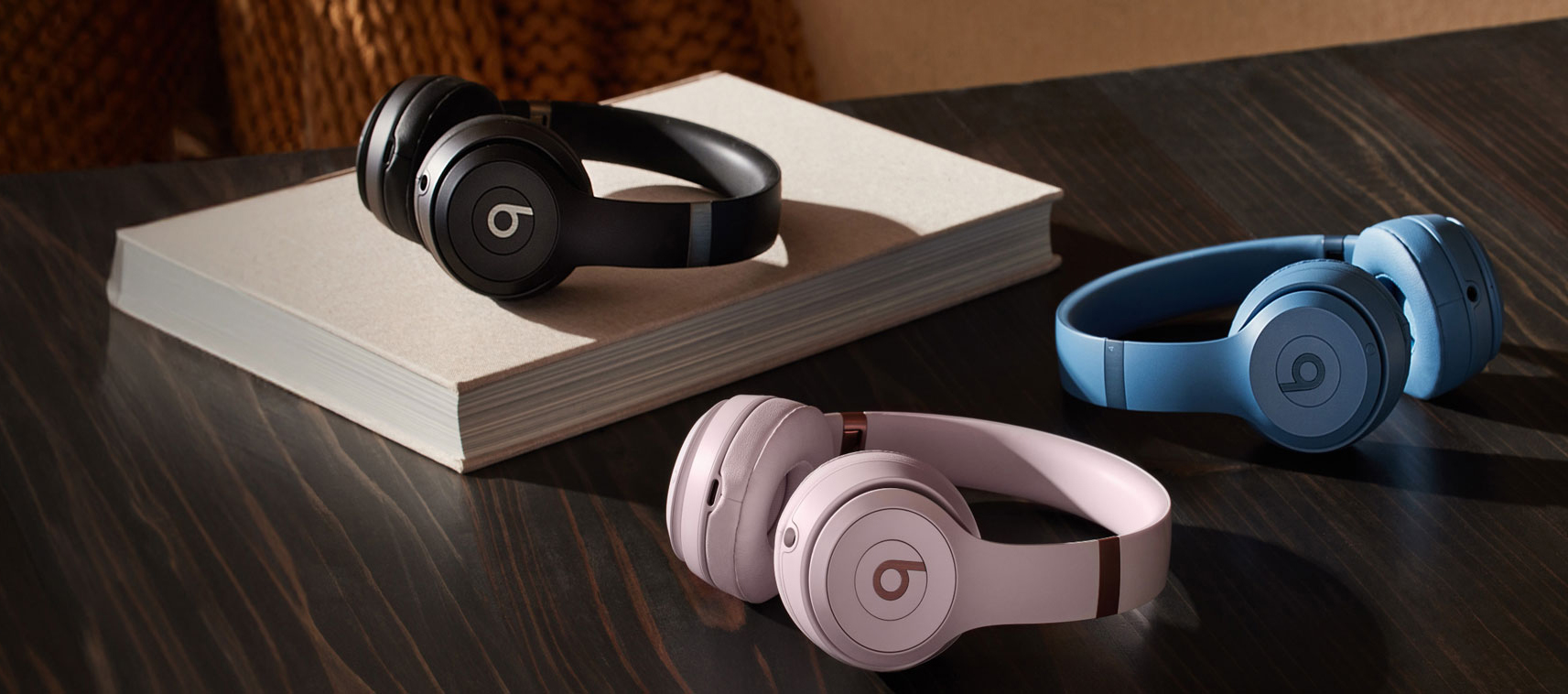
Connecting your Beats headphones to your laptop is a great way to enjoy your favorite music, movies, or games while on the go. It's a relatively easy process, but if you're not familiar with it, it can be a bit confusing. Follow the steps below to make sure you connect your Beats headphones to your laptop properly.
Step 1: If you’re using a pair of Beats true wireless earbuds, open the case lid first.
Step 2: Press and hold the power or connect button on your Beats headphones or earbuds for about five seconds. The integrated LED light should start flashing. Leave the case lid open.
Step 3: On your Windows computer, launch the Settings app.
Step 4: Go into Bluetooth & devices.
Step 5: Select Add device.
Step 6: Pick Bluetooth.
Step 7: The system will look for available devices. Find your Beats headphones and click on this option.
Step 8: Wait a few seconds. The system will establish a connection. When it does, you can start listening.
It's worth mentioning that not all laptops or desktops have Bluetooth connectivity. In this case, you might need to use an adapter that has Bluetooth capabilities to enable the wireless connection. Also, make sure your laptop's Bluetooth is enabled. You can check this by going to Settings > Devices > Bluetooth & other devices.
Lastly, make sure your Beats headphones are fully charged before using them with your laptop. This ensures uninterrupted listening pleasure and a connection that remains stable.
In conclusion, connecting Beats headphones to a laptop is a straightforward procedure. Just follow the steps outlined above, and you'll be listening to your favorite tracks in no time.
There are a few ways to connect Beats headphones to a laptop:
1. Wired connection: If your Beats headphones come with a headphone jack, you can plug them directly into your laptop's headphone jack. If your laptop doesn't have a headphone jack, you can use a USB-C to 3.5mm headphone jack adapter to connect your headphones.
2. Bluetooth pairing: If your Beats headphones support Bluetooth, you can pair them with your laptop. To do this, make sure your headphones are in pairing mode (usually by pressing and holding the power button until the light flashes), then go to your laptop's settings and turn on Bluetooth. Your laptop should be able to discover your Beats headphones and connect to them.
3. Wireless adapter: If your laptop doesn't have Bluetooth, you can use a wireless adapter to connect your Beats headphones. Plug the adapter into your laptop's USB port, then follow the instructions that come with the adapter to connect your headphones.
How to Use the Scroll Lock Key on a Laptop
Measuring Laptop Screen Size
Related Article
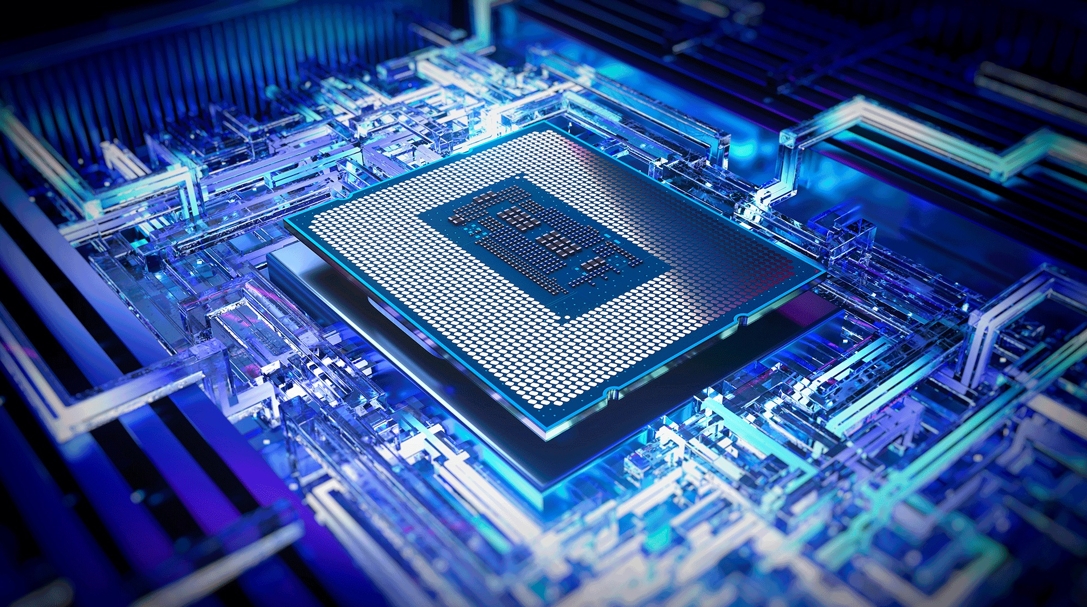
Today's laptop processors are marvels of engineering that blend raw power with specialized intelligence. Unlike older chips that relied solely on brute force, modern processors integrate dedicated AI engines called NPUs (Neural Processing Units), advanced graphics, and sophisticated power management systems.