How to Right-Click on a Laptop
How to Right-Click on a Laptop
As a writer specializing in tech, I often remind readers: the humble right-click is a gateway to efficiency. Whether you're renaming files, opening links in new tabs, or accessing advanced settings, the right-click (or “secondary click”) is indispensable. Yet, on a laptop without a standard mouse, the method isn't always obvious. This guide will walk you through every way to right-click, no matter what laptop you own.
Core Methods: The Universal Essentials
Most modern laptops support at least one of these primary methods. Start here.
1. The Touchpad/Trackpad Gesture (Most Common)
This is the default and often fastest method.
-
Two-Finger Tap or Click: Gently tap the touchpad with two fingers simultaneously. On many Windows precision touchpads and all modern Mac trackpads, this is the primary right-click gesture. It works anywhere on the surface.
-
Bottom-Right Corner Press (Windows): On some older or basic Windows touchpads, you physically press down on the lower-right corner. Think of the touchpad as divided into a left-click zone (most of it) and a right-click zone (the corner).
2. The Keyboard Shortcut (The Power User's Secret)
Don't touch the touchpad? Use the keyboard.
-
Shift + F10: The universal shortcut. Select any file, icon, or text, then press Shift + F10 to instantly open its context menu. Works on both Windows and macOS.
-
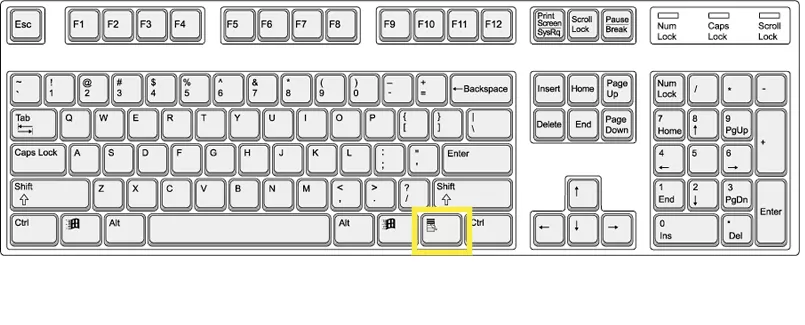
The Menu Key: Look for a key on your Windows keyboard (often between the right Alt and Ctrl) with a menu or cursor icon. Pressing it acts exactly like a right-click on the selected item.
3. The External Mouse (The Classic)
Plug in any USB or Bluetooth mouse. The button on the right side is your dedicated right-click button. This remains the most tactile and precise method for many.
4. The Touchscreen Method (For 2-in-1s & Tablets)
If your laptop has a touchscreen:
-
Press and Hold: Lightly press your finger on the item and hold for about one second. A context menu will appear upon release. This mimics the "long-press" action on smartphones.
Platform-Specific Details & Setup
On Windows Laptops:
-
Physical Buttons: Some laptops, especially gaming or business models, have distinct physical left/right buttons below the touchpad.
-
Single Button with Integrated Touchpad: On some designs, the entire touchpad surface clicks. A press on the left side is a left-click; a press on the right side is a right-click.
-
Check Your Settings: Go to Settings > Bluetooth & devices > Touchpad to customize gestures and ensure "Two-finger tap" is set to "Right-click."
On Mac Laptops (macOS):
-
Control-Click: The original keyboard-mouse combo. Hold the Control key on your keyboard and then click the trackpad with one finger.
-
Configuring "Secondary Click": This is the macOS term for right-click. Go to System Settings > Trackpad > Point & Click. Here, you can choose to enable "Secondary click" to be triggered by a two-finger click, or a click in the bottom-right or bottom-left corner of the trackpad. The two-finger tap is usually the most intuitive.
Quick Troubleshooting & Pro Tip
-
Nothing Happens? First, check if your touchpad is enabled (some laptops have a disable toggle). Then, visit your system's touchpad settings—the gesture might be turned off.
-
Pro Tip for Precision: When using the two-finger tap, keep your fingers close together and tap lightly. It's a tap, not a press. If you're struggling, the Shift+F10 keyboard shortcut is your most reliable fallback.
Final Recommendation
For Windows users, master the two-finger tap—it's fast and works contextually wherever your cursor is. For Mac users, the two-finger click (after enabling it in Settings) is the natural equivalent. And for everyone, memorizing Shift + F10 will make you feel like a keyboard ninja, seamlessly moving between actions without ever lifting your hands from the keys.
The right-click is more than a function; it's a workflow accelerator. Knowing all the ways to access it ensures you're never slowed down, whether you're editing a document, organizing your desktop, or browsing the web.
Why Is My Laptop So Slow? A Friendly Guide to Restoring Your PC's Speed
Choose the best laptop processor in 2025
Related Article
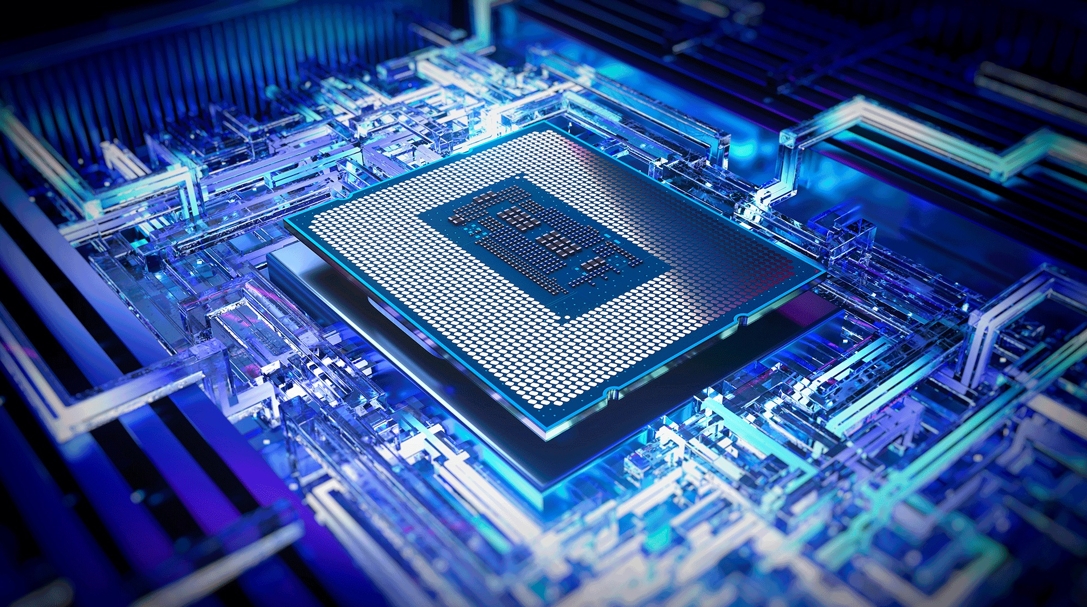
Today's laptop processors are marvels of engineering that blend raw power with specialized intelligence. Unlike older chips that relied solely on brute force, modern processors integrate dedicated AI engines called NPUs (Neural Processing Units), advanced graphics, and sophisticated power management systems.