Why Is My Laptop So Slow? A Friendly Guide to Restoring Your PC's Speed
Why Is My Laptop So Slow? A Friendly Guide to Restoring Your PC's Speed
few things in life are as frustrating as a slow computer. You click an icon and wait. And wait. You try to open a browser, and it feels like watching paint dry. If your trusty laptop has started to feel more like a reluctant donkey than a racehorse, you're not alone, and more importantly, you don't have to live with it.
As someone who has been writing about computers for over two decades, I've seen this happen to countless machines. The good news is that a slow laptop is rarely a lost cause. Often, the culprit isn't the computer's age, but a buildup of digital clutter, misbehaving software, or a few incorrect settings. In many cases, you can restore its former glory without spending a dime—and definitely without needing a computer science degree.
In this guide, I'll walk you through a series of effective, easy-to-follow steps to diagnose and fix the most common causes of sluggishness in Windows. We'll start with quick software tweaks and move towards more impactful (and sometimes paid) hardware upgrades. Think of it as a digital tune-up for your hardworking machine.
Before We Begin: A Word on "Cleaners"
You might have seen ads for "registry cleaners" or other "PC booster" software promising instant speed. Please, do yourself a favor and ignore them. These tools are often ineffective at best and can lead to malware or system instability at worst. Microsoft itself advises against them. The methods we'll use here are the safe, reliable ones built right into Windows or offered by trusted sources.
Ready to get your spring back? Let's dive in.
1. The Great Purge: Uninstall Crapware and Unused Programs
When you buy a new PC, it often comes with a lot of extra software the manufacturer installed—trial versions of antivirus programs, custom utilities, games you'll never play. This is colloquially known as bloatware or crapware. These programs take up space, run in the background, and can significantly slow down a new machine.
Even beyond the pre-installed junk, we all have programs we installed once, used for a week, and forgot about. It's time for a digital spring cleaning.
Here’s how to do it:
-
Open Installed Apps: The easiest way is to right-click on the Windows Start button and select Installed Apps (or Apps & Features). You can also type "installed apps" into the search bar next to the Start button.
-
Find the Culprits:
-
Sort by "Install date" to see any recently added programs you might have accidentally picked up.
-
Sort by "Size" to find large applications you no longer need, freeing up significant storage space.
-
Look for your PC maker's name (e.g., Dell, HP, Lenovo, Asus). Manufacturers often bundle their own tools here. If you don't use them, they can go.
-
-
Uninstall: Click the three dots next to any application you want to remove and select Uninstall. Confirm your choice.
-
Pay special attention to: Toolbars, "optimizers," trial versions of paid software (like Microsoft Office or Norton Antivirus), and any app you simply don't recognize or use.
-
-
Don't forget traditional desktop programs: Some older-style programs are still best uninstalled via the classic Control Panel. Type "Control Panel" in the search bar, open it, and go to Programs > Programs and Features. You'll see another list here. Right-click any unwanted item and select Uninstall.
Set aside 15-20 minutes for this. You'll be surprised how much digital baggage you can throw overboard.
2. Tame the Startup Stampede
Many programs are designed to launch automatically every time you turn on your PC. This is convenient for things you use constantly, like your cloud storage (Dropbox, OneDrive) or communication apps. But for everything else, it's just a bunch of programs fighting for resources before you even get to your desktop, dramatically slowing your startup time.
Let's take control of your startup posse:
-
Open Task Manager: Press
Ctrl + Shift + Escon your keyboard. This is the magic shortcut. -
Go to the Startup Tab: Click on the Startup tab at the top of the Task Manager window.
-
Analyze the Impact: You'll see a list of every program that starts with Windows, along with its publisher and a "Startup impact" rating (High, Medium, Low, or Not Measured).
-
Disable the Unnecessary: Right-click on any program you don't need running all the time and select Disable.
-
Good candidates for disabling: iTunes Helper, Adobe Reader update utilities, or any app you rarely use. If you see a program you don't even recognize, a quick web search can tell you what it is. If it's not essential, disable it.
-
Don't worry—disabling a program here doesn't uninstall it. It just prevents it from launching at startup. You can still open it manually whenever you need it. This single step can have a massive impact on how fast your PC feels when you first log in.
3. Let Windows Clean Up After Itself
Over time, Windows accumulates digital junk: temporary files from installing updates, leftovers from programs, thumbnails, and files in your Recycle Bin. This clutter can eat up valuable drive space, and if your main drive gets too full, it can slow down your entire system.
Windows has a built-in feature called Storage Sense that can automate this cleanup for you.
-
Open Settings: Press
Windows key + Ito open Settings. -
Navigate to Storage: Go to System > Storage.
-
Turn on Storage Sense: At the top of the Storage page, you'll see a toggle for Storage Sense. Turn it On.
-
Configure It: Click on Storage Sense to configure how it works. I recommend setting:
-
Cleanup of temporary files: Set it to run "During low free disk space" or "Every day."
-
Automatic User content cleanup: Check the boxes to delete files in my Recycle Bin or Downloads folder after a period (e.g., 30 or 60 days). This is a great way to keep your Downloads folder from becoming a digital black hole.
-
You can also run a manual cleanup anytime by clicking the "Run Storage Sense now" button at the bottom of its configuration page.
4. Run a Health Check: Viruses and Troubleshooters
Sometimes a slowdown is a sign of something more sinister, like a virus or spyware. Other times, it's just Windows not playing nicely with itself.
First, scan for malware:
-
Windows comes with Microsoft Defender, which is a solid, built-in antivirus. You can run a quick scan by typing "Virus & threat protection" in the search bar.
-
For a second opinion, consider using a dedicated, on-demand scanner like Malwarebytes. The free version is excellent for running occasional manual checks to catch things that might have slipped through.
Second, let Windows fix itself with Troubleshooters:
Windows has built-in diagnostic tools called troubleshooters that can automatically find and fix common problems.
-
Open Troubleshoot Settings: Type "Troubleshoot settings" in the search bar and open it.
-
Run Recommended Troubleshooters: You might see a list of recommended troubleshooters here. Run any that are suggested.
-
Find More: Click on Other troubleshooters. You'll see a long list of tools for things like internet connections, audio, Windows Update, and more. While you may not need to run them all, it's a good place to start if you're having a specific issue (e.g., if your PC is slow and your Wi-Fi is spotty, run the "Internet Connections" troubleshooter).
5. Optimize Your Power for Performance
By default, many laptops, especially when unplugged, are set to a "Balanced" or "Power Saver" plan to conserve battery. If speed is your priority, especially when you're plugged in, you can flip a simple switch.
Switch to Best Performance mode:
-
Open Power Settings: Go to Settings > System > Power & battery.
-
Adjust Power Mode: Right at the top of the page, you'll see a dropdown menu for Power mode. Click it and select Best performance.
This tells your computer to prioritize speed over energy savings, allowing your processor to run at higher speeds. It will use more power, so you'll see the biggest benefit when your laptop is plugged in.
6. Keep Windows Updated (Yes, Really!)
I know, Windows Update notifications can be annoying. But those updates aren't just about new features or nagging you to restart. Many of them include crucial performance improvements, security patches, and, most importantly, updated hardware drivers. Drivers are the software that lets Windows talk to your specific hardware (graphics card, network adapter, etc.). Updated drivers can often resolve slowdowns and bugs.
-
Check for Updates: Go to Settings > Windows Update.
-
Click "Check for updates": If any updates are available, Windows will download and install them. You can schedule a restart for a time when you're not using the PC.
7. Consider a Software Power-Up: Microsoft PC Manager
Microsoft offers a free, official utility called Microsoft PC Manager that bundles several of the tips we've discussed into one simple interface. It's like a friendly, trustworthy dashboard for your PC's health.
-
Download and Install: Search for "Microsoft PC Manager" in your web browser and download it from the official Microsoft website.
-
Run a Health Check: The main window has a "Health check" button that will scan for junk files, manage startup programs, and suggest other optimizations with a single click.
-
Use the Boost Feature: It also includes a "Boost" button that can free up RAM instantly. While the performance gains might be modest on their own, it's a handy tool for a quick, one-click cleanup, especially for less experienced users.
8. Hardware Upgrades: When Software Isn't Enough
If you've tried all the software fixes above and your laptop is still struggling, it might be time to consider a hardware upgrade. This will cost a little money, but it can breathe new life into an old machine more than anything else. These are the two most impactful upgrades you can make.
A. Add More RAM (Memory)
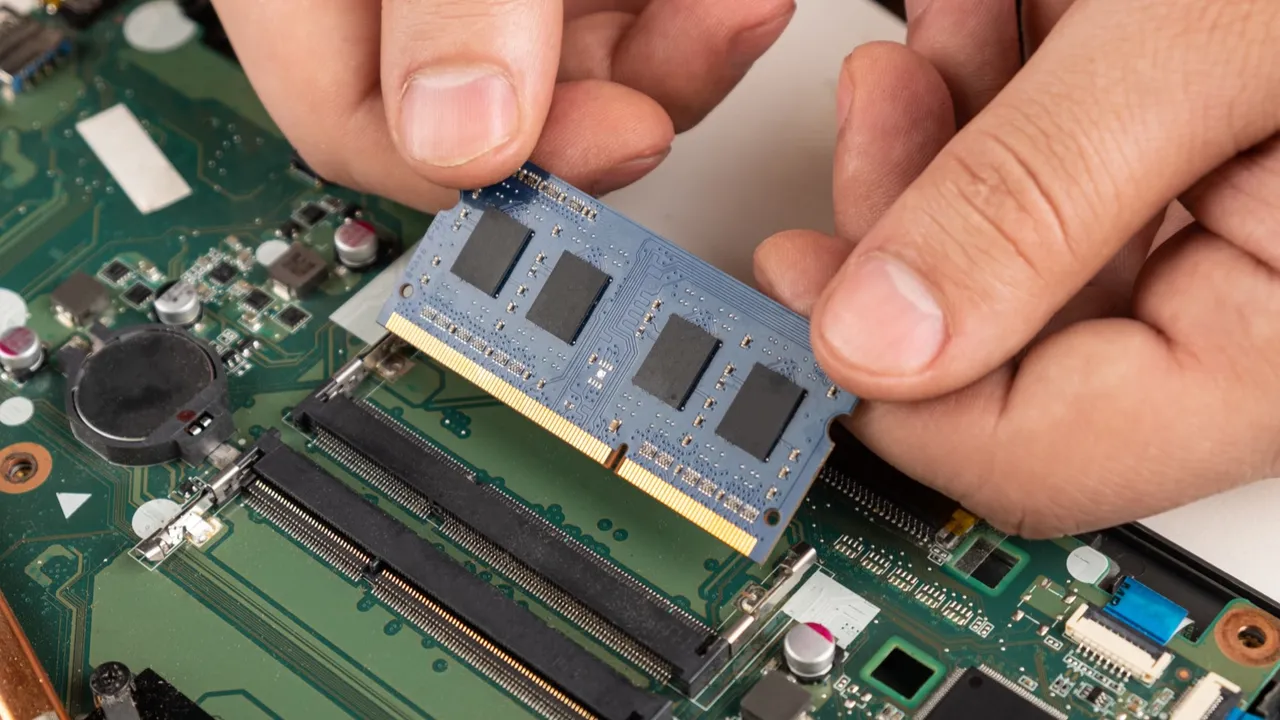
Think of RAM as your computer's short-term memory for tasks it's actively working on. If you're the type of person who has 20 browser tabs open, Spotify playing, and a Word document running all at once, you're likely using all your available RAM. When RAM is full, your computer starts using your slow hard drive as "fake" memory, which grinds everything to a halt.
-
How to check if you can upgrade: Unfortunately, many modern, slim laptops have the RAM soldered directly to the motherboard and cannot be upgraded. You'll need to check your specific laptop model's manual or look it up online (search for "[your laptop model] RAM upgrade"). Business-class laptops or older, thicker models are often upgradeable.
-
If you can upgrade: Websites for major RAM brands like Kingston or Corsair have "memory finder" tools. You enter your laptop model, and they tell you exactly what kind of RAM to buy and how to install it. It's often one of the simplest and most effective upgrades you can do.
B. Switch to an SSD (Solid State Drive)
This is, without a doubt, the single best performance upgrade you can make to any old computer. If your laptop still has a traditional spinning hard drive (an HDD), swapping it for an SSD is like replacing a bicycle engine with a jet turbine. Windows will start in seconds instead of minutes, programs will open instantly, and the whole system will feel snappy and responsive.
-
Check what you have: Open Task Manager (
Ctrl+Shift+Esc), go to the Performance tab, and click on Disk 0. If it says "HDD" or "Hard Disk Drive," you are in for a treat. -
The upgrade: You have two options. You can replace your internal hard drive with an SSD (a more involved process that requires reinstalling Windows) or, for a simpler option, buy an external SSD that connects via USB. For example, a fast external SSD with a USB 3.0 or USB-C connection can run many programs and files much faster than an internal hard drive, though not quite as fast as an internal SSD. If you're comfortable opening up your laptop, replacing the internal drive is the ultimate speed hack.
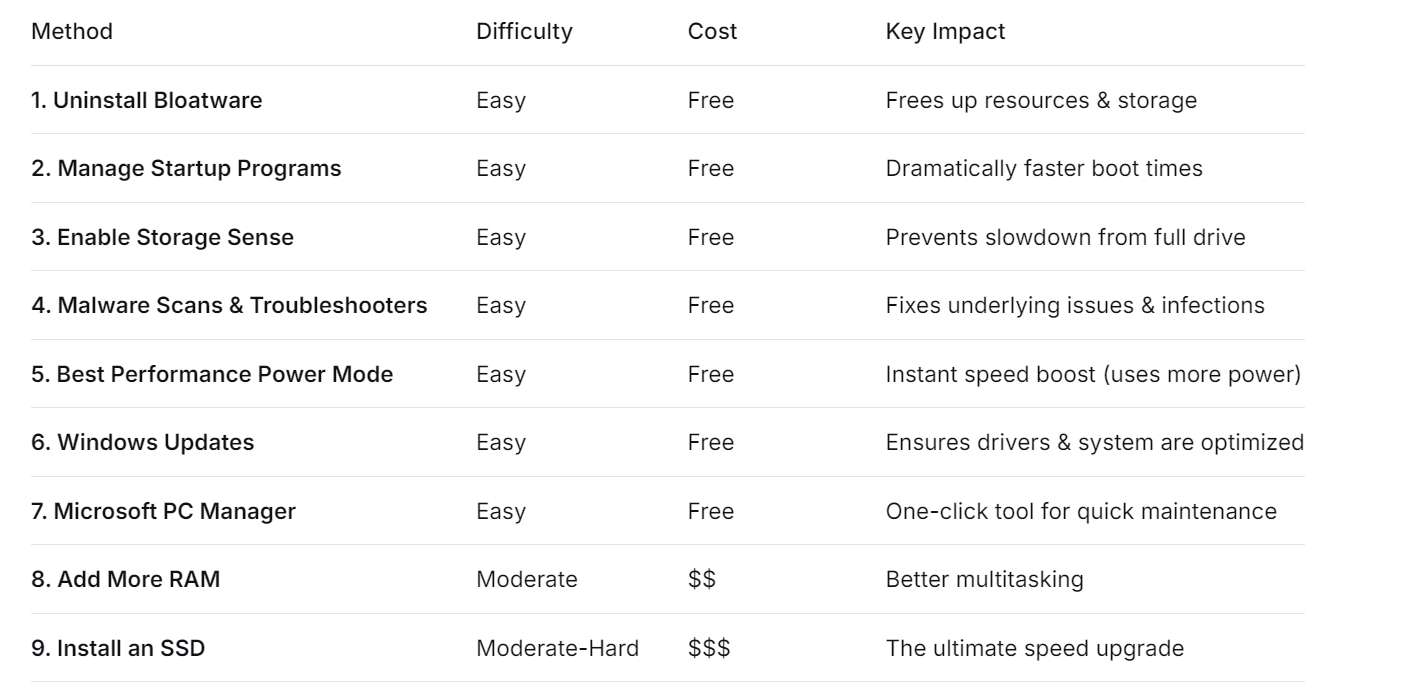
Quick Recap: Your Laptop Speed Rescue Plan
Finding the Perfect Good Work Laptop in 2026
How to Right-Click on a Laptop
Related Article

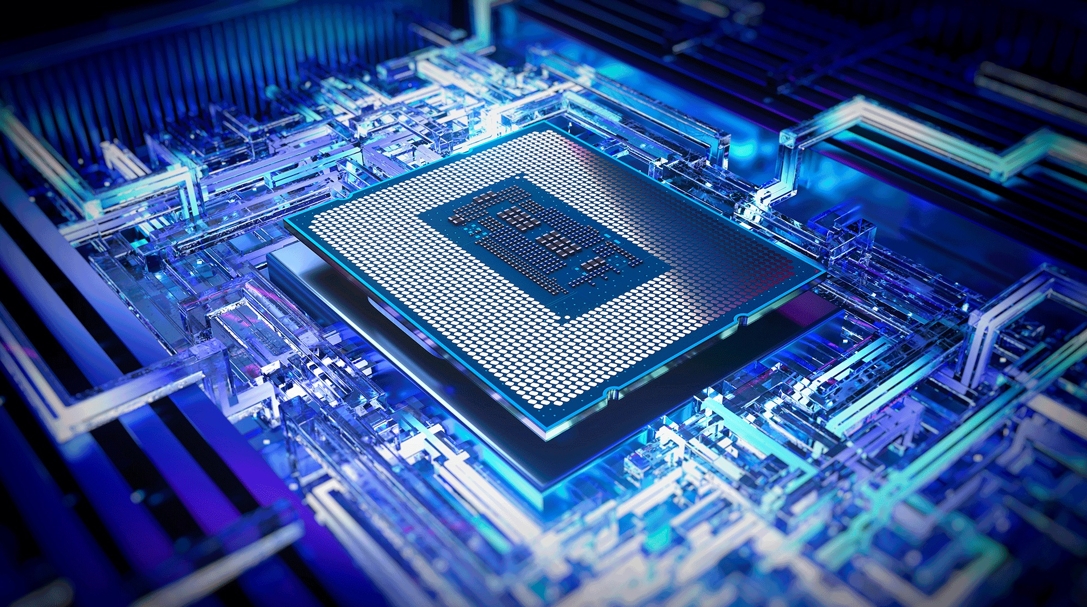
Today's laptop processors are marvels of engineering that blend raw power with specialized intelligence. Unlike older chips that relied solely on brute force, modern processors integrate dedicated AI engines called NPUs (Neural Processing Units), advanced graphics, and sophisticated power management systems.